AI Auto Design
A kitchen design needs geometry, layout, placement, materials and appliances — expert work that AI Auto Design compresses into a first pass, in seconds.
- Product
- Winner & Design Flex (Pro)
- Role
- End-to-end AI Auto Design flow
- Disciplines
- Interaction · AI experience · product strategy
- Status
- Shipped
A kitchen configuration is the product of room geometry, a layout choice, cabinet placement, materials, appliances and special requirements. In the Pro tools that's precise, expert, time-consuming work. AI Auto Design compresses the first pass — Preset mode turns a few choices into an AI-placed layout, Draw mode gives expert users exact control over where things go, and in both AI does the heavy lifting of turning the layout and brief into complete, catalog-grounded designs.
This serves the highest-value Pro users of Cyncly's design software. It collapses the time from empty room to a credible, editable first design, while keeping generation cost controlled and the output grounded in the real catalog and room — so it's genuinely usable downstream, not just a convincing render.
Constraints
- It runs inside existing Pro tools (Winner Design / Flex) — it can't replace them; it has to hand off cleanly into them.
- Drawing has to feel precise (real millimetre dimensions, undo/redo) without becoming CAD.
- Output must be catalog-valid and fit the drawn geometry, not just look plausible.
- Generation is expensive and takes minutes — the flow has to set expectations and generate deliberately.
- Drawings can be infeasible (collisions, impossible runs); those have to be caught and fixable before a generation is spent.
An AI layer over the Pro tools
AI Auto Design isn't a separate app — it opens as a dialog inside Winner Design, on top of the project the designer is already working in. It offers two ways to start: Preset Shapes (pick an L or U and let AI place the cabinets) or Draw your own (sketch the room and cabinets yourself).
This study covers both modes. They differ only in how the layout is set — a chosen shape or a hand-drawn canvas — then converge on the same brief, generation, results and export. The premise is the same throughout: speed without disconnection, with output grounded in the real catalog and room, then continued in the 3D and quoting workflow teams already trust.
See it in motion
A full Draw-mode run: draw the room, place runs and appliances, build the brief, generate, and open a result in 3D.

Two ways in: Preset or Draw
Pro users range from ‘give me a strong starting point’ to ‘I know exactly where the island goes’. One rigid entry point would alienate half of them.
Options weighed
- Preset only: fast, but too rigid for experts who want control.
- Draw only: powerful, but slow and intimidating for a quick first pass.
- An explicit fork: Preset Shapes (AI places cabinets) or Draw your own (place them yourself).
Decision
An explicit choice up front — Preset for a fast AI-placed start, Draw for hands-on control — both feeding the same brief, catalog and generation step.
Trade-off — Two entry paths to design and build instead of one, in exchange for meeting both the speed-seeker and the control-seeker where they are.
Pick a shape, and AI places the cabinets
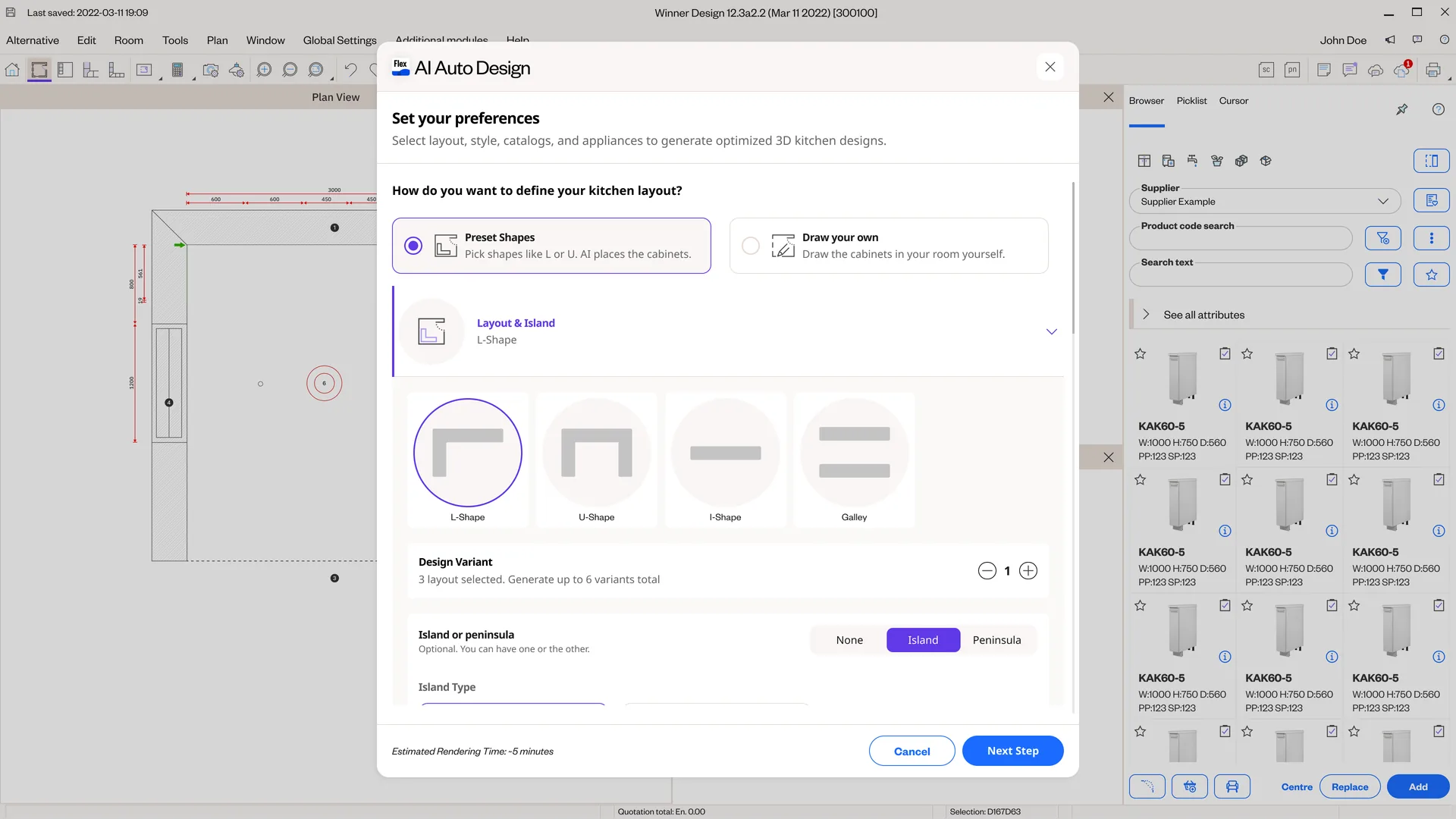
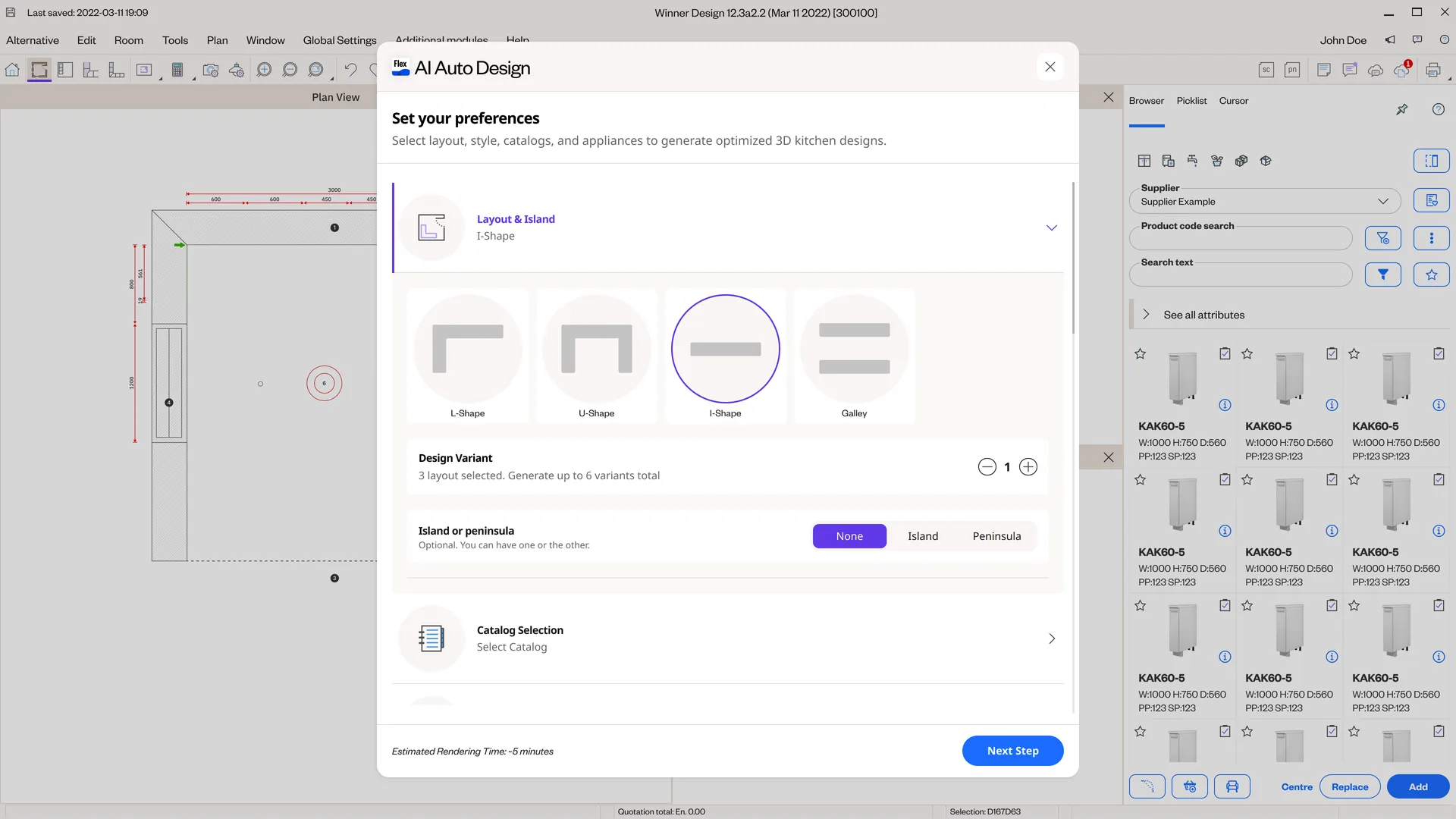
Preset mode is the fast way in. Instead of drawing, the designer picks a base layout — L, U, I or Galley — sets how many variants to generate, and chooses an island or a peninsula (or neither). From those few choices, AI lays out the cabinet runs.
It's the same preferences dialog as Draw, with only the layout step swapped: Draw gives you a canvas, Preset gives you shapes. Everything after — catalogs, the brief, generation — is identical.
Preset: let AI place the cabinets
Not every Pro user wants to draw. Many just want a strong, catalog-valid starting point from a few choices — but ‘a few choices’ can't be so thin that the result feels random, nor so many that it's just a slow form.
Options weighed
- A single auto-layout with no inputs: fastest, but too generic to trust.
- A long configuration form before any layout: precise, but that's the slow path Preset exists to avoid.
- A small set of high-signal choices — shape, variant count, island/peninsula — that AI turns into placed runs.
Decision
Reduce the layout step to the decisions that actually shape a kitchen — the overall shape, how many variants to explore, and whether there's an island or peninsula — and let AI place the cabinet runs from there.
Trade-off — The designer gives up exact control over where each run sits (that's what Draw is for), in exchange for a credible, catalog-grounded layout in seconds.
The Preset flow
- 01
Pick a layout shape
Choose L, U, I or Galley, and how many variants to generate.
- 02
Add an island or peninsula
Optionally add one or the other — the choice feeds how AI arranges the run.
- 03
Choose catalogs
Select which product catalogs the generated kitchen must be built from.
- 04
Build the brief & generate
From here it's identical to Draw — describe what you want (or use the AI prompt builder), then generate once.
Or draw it yourself
For experts who know exactly where the island goes, Draw mode trades the preset shapes for a drawing canvas — the rest of the flow is shared. The rest of this study follows the Draw path in depth.
The Draw flow, end to end
- 01
Choose Draw your own
Opt into hands-on control from the preferences screen.
- 02
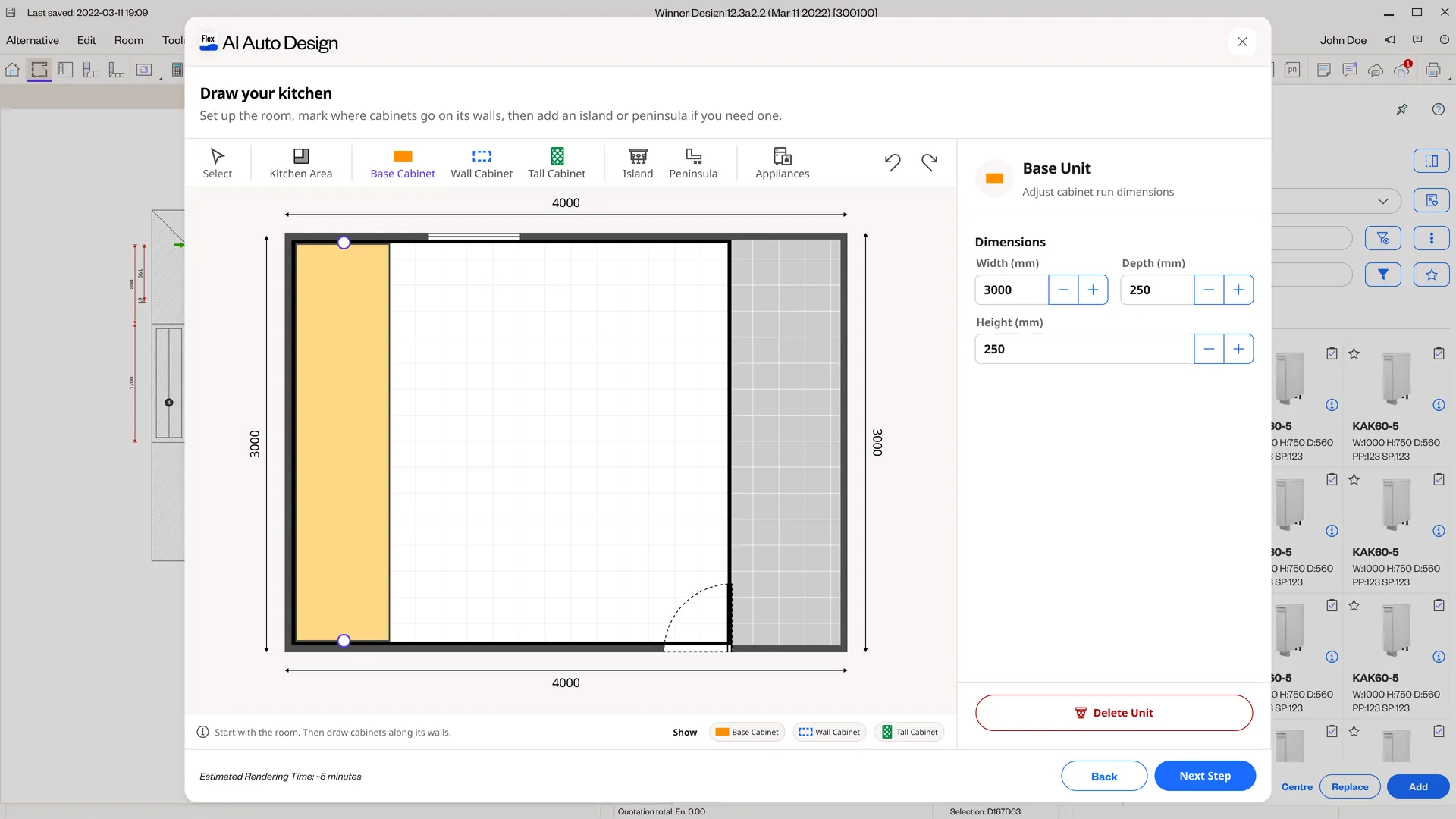
Draw the room & cabinet runs
Set the kitchen area, then place base, wall and tall cabinet runs along the walls at real millimetre dimensions, with undo/redo.
- 03
Add island & appliances
Drop an island or peninsula and place appliances (sink, cooktop, oven, fridge…) onto the drawing.
- 04
Fix any collisions
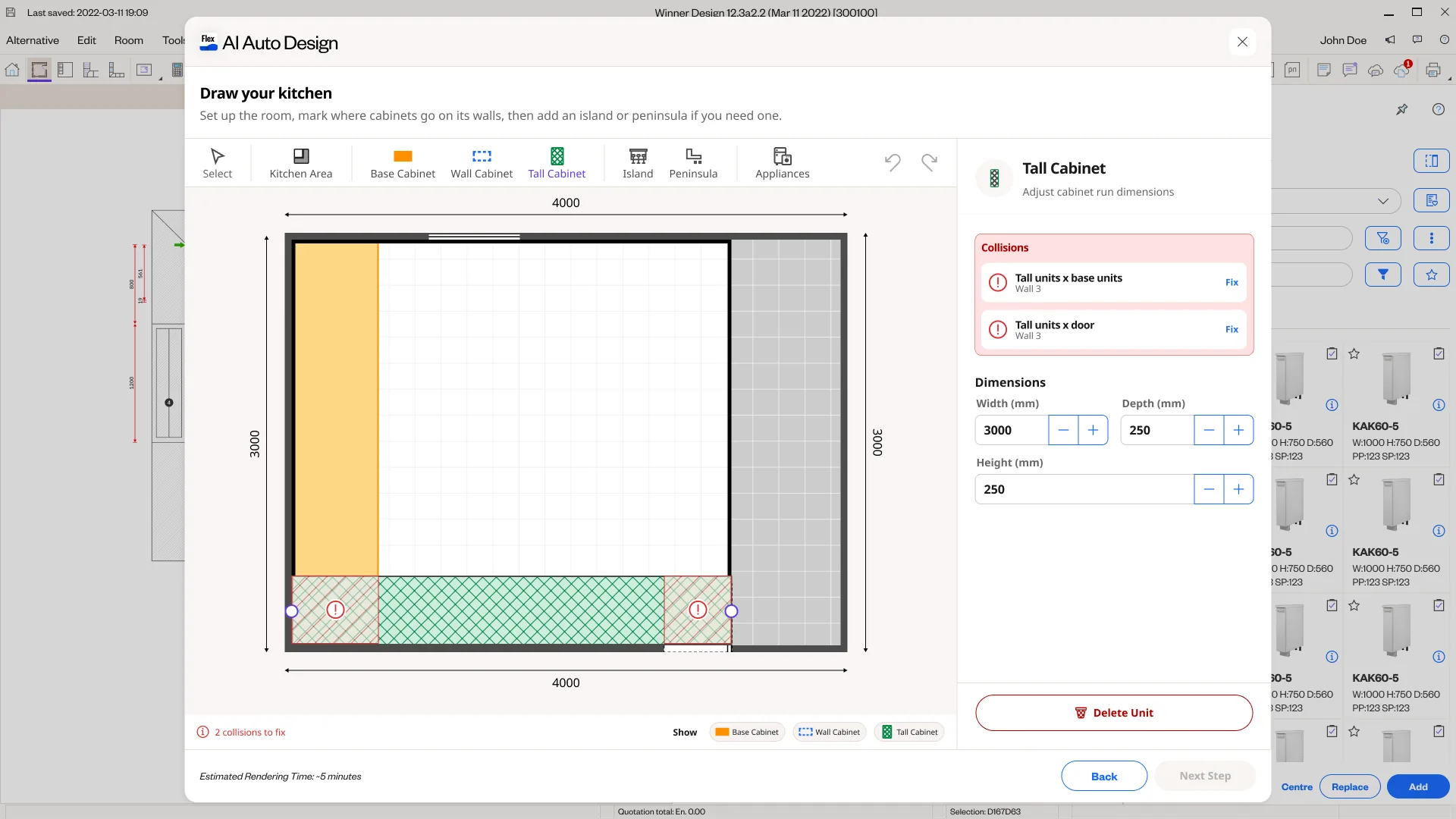
Overlaps and impossible placements are flagged on the drawing and must be resolved before generating.
- 05
Build the brief
Add design instructions in your own words, or with an AI-guided sentence builder of catalog-backed choices.
- 06
Generate
Choose catalogs and variant count, then “Generate My Kitchen” once — with a rendering-time estimate.
- 07
Review & continue
Compare optimised layouts, give feedback, then open a chosen one in 3D or export back into the Pro tools.
Precise, but not CAD
Expert users need exact control — real dimensions, specific runs, where the island sits. But a full CAD surface would be slow and intimidating, and would undercut the ‘fast first pass’ promise.
Options weighed
- Free-form CAD drawing: maximal control, but slow and heavy.
- Fixed templates only: fast, but that's just Preset mode — no real drawing.
- A constrained drawing canvas: snap to walls, typed millimetre dimensions, cabinet-run tools, undo/redo.
Decision
A purpose-built canvas: draw the kitchen area, then place base/wall/tall cabinet runs along walls with exact dimensions and per-unit editing — enough control to be precise, constrained enough to stay fast.
Trade-off — Not the unlimited freedom of CAD, in exchange for a drawing step an expert can complete in minutes that still produces a catalog-valid basis for generation.
Drawing the kitchen, piece by piece
Catch problems before you spend a generation
Drawing freely means people will draw things that can't be built — tall units clashing with base units, a cabinet across a doorway. Because a generation costs real time and money, those problems have to surface before you commit, not after.
The canvas validates continuously: collisions are marked in red on the drawing and listed with a plain-language reason (“Tall units × door, Wall 3”) and a Fix action. Next Step stays disabled until they're resolved — so a generation is never wasted on an impossible drawing.
Where Preset and Draw merge
However the layout was set — a chosen shape or a drawn canvas — the flow is now identical. Both modes arrive at the same brief step, the same single generation, the same results, and the same export back into the Pro tools.
Build the brief — in your own words, or AI-guided
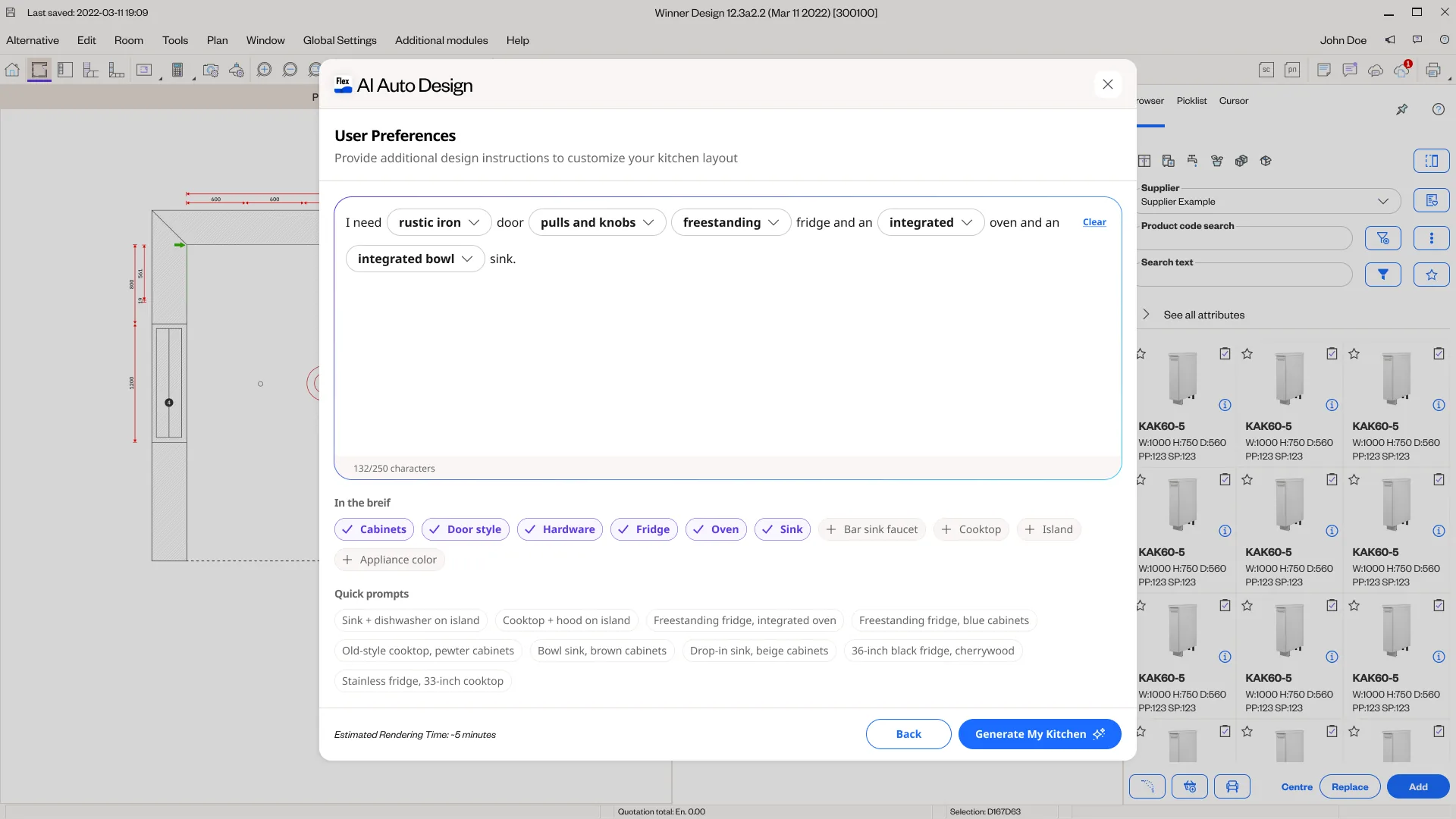
Once the drawing is done, the designer still needs to say what they want built in it — finishes, door style, appliance types. A blank text box is friendly but vague; a rigid form is precise but tedious. And whatever they write has to map to the real catalog.
Options weighed
- Free text only: natural, but ambiguous and hard to ground in the catalog.
- Structured form only: precise, but slow and un-human.
- Both: type freely, or build the brief with a guided sentence of catalog-backed dropdowns, chips and quick prompts.
Decision
After the drawing, a **prompt step** where the designer writes instructions in their own words — or builds them with an AI-guided sentence builder: a readable sentence (“I need rustic iron door pulls and knobs, a freestanding fridge and an integrated oven…”) where each highlighted phrase is a catalog-backed dropdown, supported by brief chips and one-tap quick prompts. That becomes the prompt the kitchen is generated from, together with the drawing.
Trade-off — More to design than a single text box, in exchange for a brief that stays readable to a human and unambiguous to the generator — the drawing says *where*, the prompt says *what*.

Designing the whole generation, not just the happy path
Generation takes minutes and doesn't always succeed. Each state is designed so the person always knows what's happening and what to do next.
- Generating
- A per-run progress state with a realistic time estimate, not a generic spinner.
- Results
- Several optimised layouts with the inputs used; select one, and give a thumbs up/down to steer future runs.
- Infeasible drawing
- Collisions are flagged and must be fixed before generating — no wasted runs.
- Export
- A chosen design exports back into Winner Design to continue in the Pro workflow.
From generate to a chosen design
Generate once, at the end
Each generation has a real cost and a multi-minute wait. Regenerating after every change would be expensive and disorienting — the result would never settle.
Options weighed
- Regenerate on every change: immediate, but costly and unstable.
- Manual regenerate per change: cheaper, but noisy and easy to forget.
- Stage the whole drawing and brief, generate once from a single confirmed action.
Decision
Stage the drawing, brief, catalogs and variant count, then generate once from a single confirmed “Generate My Kitchen”, with the rendering estimate shown before committing.
Trade-off — People give up instant per-change previews for a clearer, far cheaper journey and a result they chose to commit to.
In closing
What changed
- Two ways into AI Auto Design: Preset mode (pick a shape, AI places the cabinets) and Draw mode (a precise canvas to sketch room, runs, island and appliances) — converging on one shared flow.
- Continuous collision validation that blocks generation on an impossible drawing — reasons, Fix actions, and a disabled Next Step.
- A brief step that works in the designer's own words or through an AI-guided sentence builder of catalog-backed choices.
- A full generation experience — generating, multiple optimised results with feedback, and export back into the Pro 3D workflow.
What's still open
- A closer look at the AI prompt model and how outputs stay grounded in the catalog.
What I learned
Speed and control aren't opposites — Preset gets a credible kitchen from a few choices, Draw gives experts a surface that's precise without being CAD, and both feed the same catalog-valid brief. When AI does the expensive work, the design job is commitment and legibility: catch the impossible before you spend a run, and make success, failure and feasibility obvious.
Leap NLP